
If you have successfully run a session with your students, there are several ways to make the results accessible to them. Which option applies depends on how the students joined the session.
Students are logged in with their student account during the session
If your students verified themselves for the session — meaning they logged in with their Classtime account — they can easily view the results in the Student Portal.
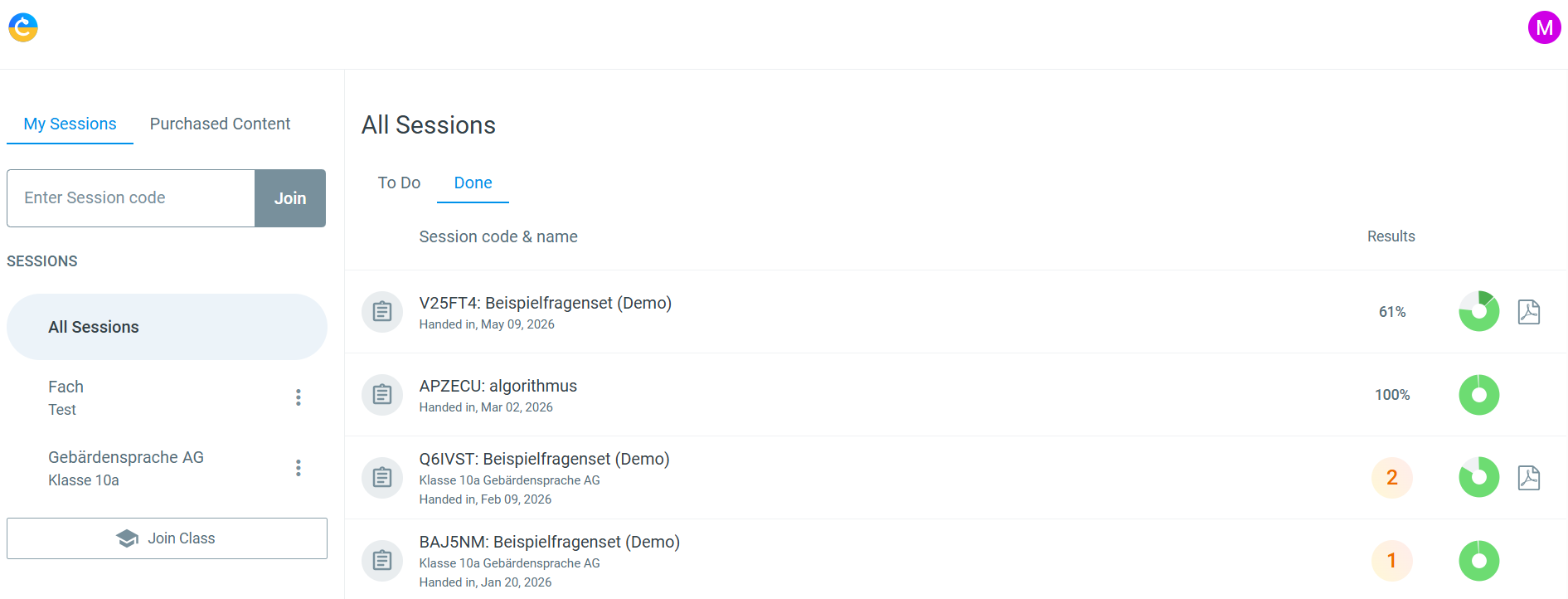
Sessions that have already ended are listed there under "completed".
They can be reopened with a single click.
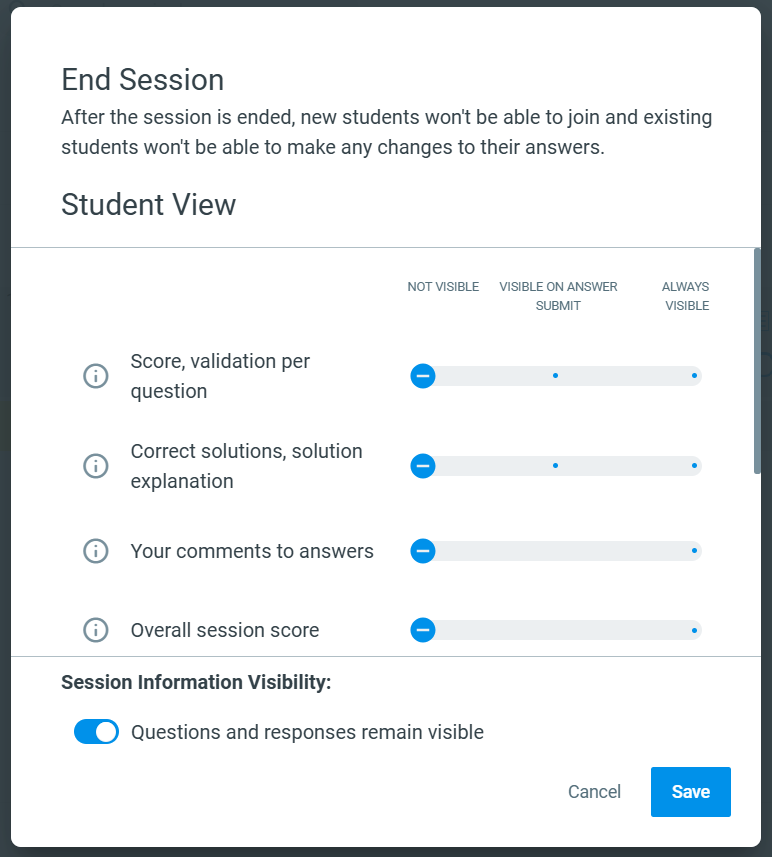
What exactly students can see there is determined by you, the teacher, via the student view settings.
Optionally, you can also make the PDF export with the session results available to students.
Note: Once a session has ended, students can no longer make any edits.
Students participated in the session without an account
If your students only took part in the session using a nickname, i.e. without a Classtime account, you as the teacher need to export the session results once and pass them on to your students yourself.
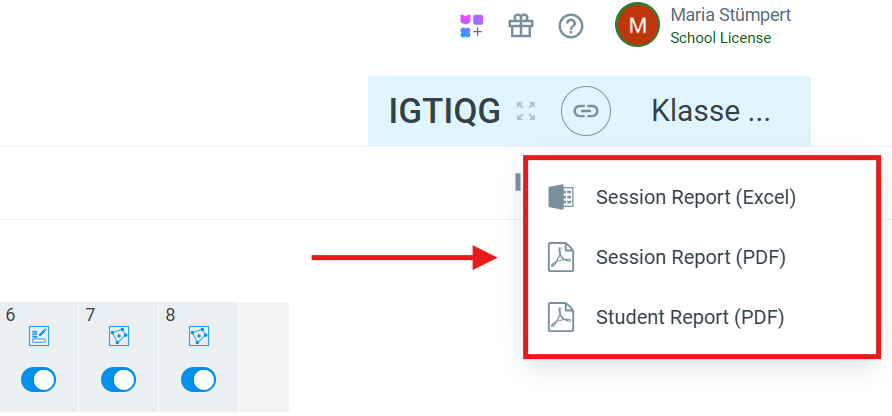
You can find the option to download the results:
in the Session Dashboard in the top right corner, or
under the Sessions tab, on the right in the respective column of the selected session.
Note: What is included in the session report depends on your settings. As a general rule: whatever was enabled in the settings when the session was ended is also visible on the PDF.
Settings that can prevent access to results
If, despite following the instructions above, it is not possible to view the results, please check whether the following settings are still enabled for the session:
Log out when students submit the session
SEB is still enabled
All questions are disabled or the session is still shown as paused — in this case, you would need to reactivate the session, enable the questions if necessary, and then end the session again
If you want to change settings within the general session settings afterwards, the session does not need to be reactivated for this.
If you have any further questions or issues, please feel free to contact our Customer Support Chat or email us at team@classtime.com.