
AI Validation helps you grade open answers in a fraction of the time. It reads each student answer, compares it to the rubric, and suggests points. You can then apply all suggestions with one click or adjust any of them.
With AI Validation, you can:
Save time on grading free-text answers
Use partial points (full, half, or none)
Understand each suggestion through a short AI reasoning
Keep the final say on every grade
Step 1: Review the Suggestions
Start a session with a free-text question.
As students answer, suggestions are prepared in the background. Identical answers are grouped and evaluated once.
Open the answers view.
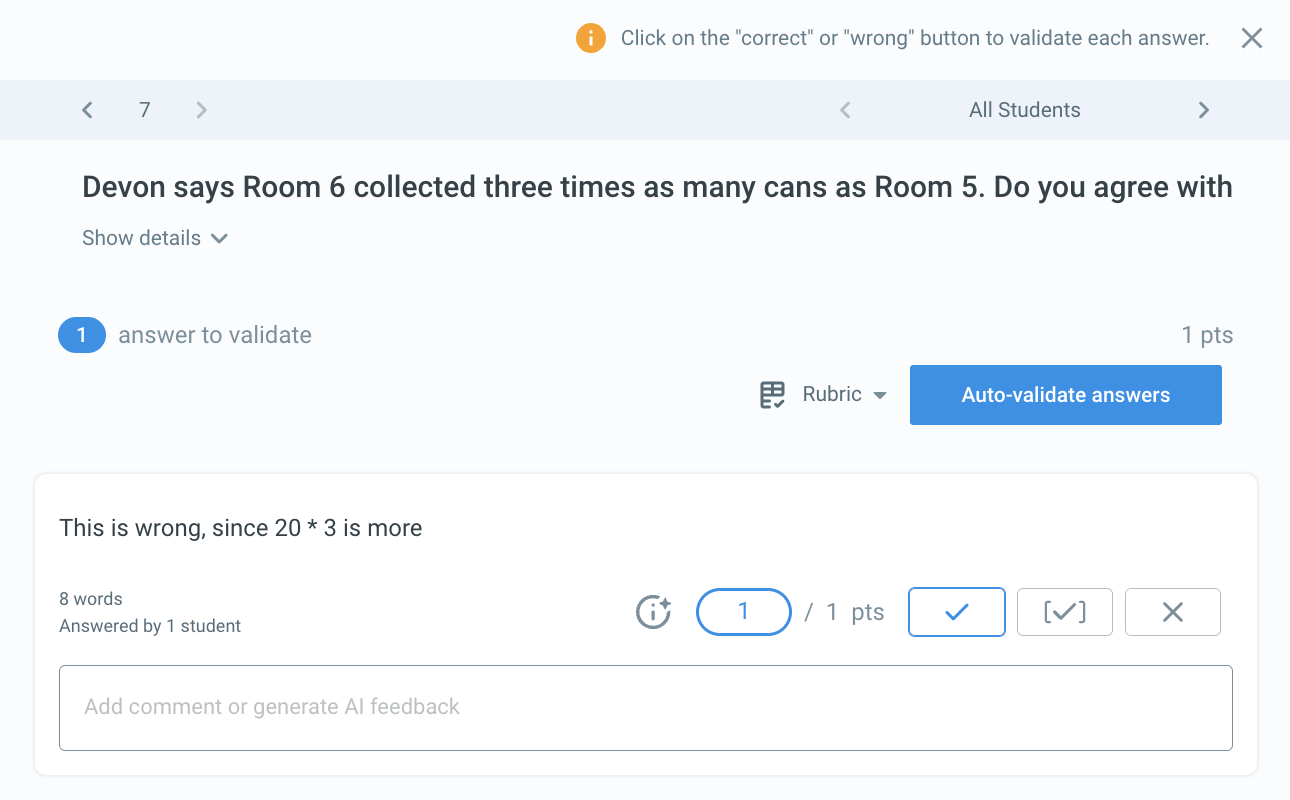
The suggested button (correct, partially correct, or incorrect) is highlighted, and the points field shows the matching value: 100%, 50%, or 0 points.
The rubric is collapsed by default. Click Rubric to expand it.
Step 2: Apply AI Validation
When you are happy with the suggestions, click Auto-validate answers and all answers are graded at once.
Want to disagree with a suggestion? Click a different button. Your manual grade always takes priority and will not be overwritten when you apply AI validation.
If a new answer comes in while you are reviewing, you will see a note such as "1 answer to validate" at the top.
Understand the Reasoning
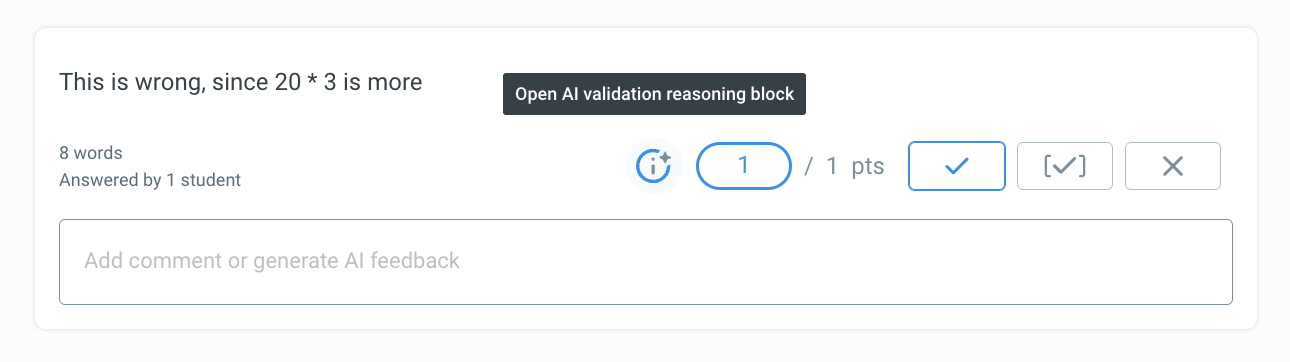
Click the i icon (tooltip: "AI validation reasoning") next to an answer to see why the AI suggested that grade.
Click the Copy icon to paste the reasoning into the comment field and edit it as feedback for the student. The reasoning stays visible after you have graded the answer.
Adjust the Rubric
If many suggestions look incorrect:
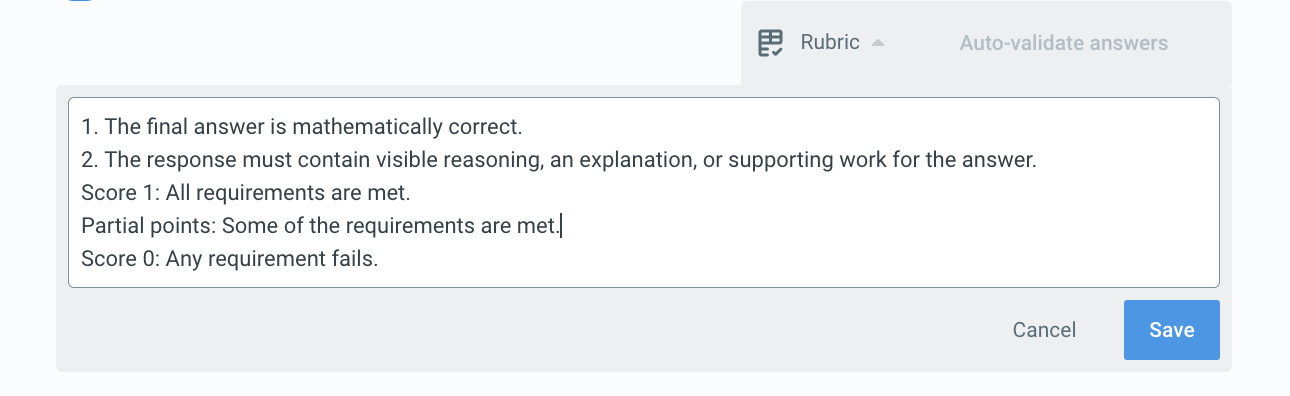
Click Rubrics and then Edit.
Adjust the criteria and click Save.
Suggestions reload using the new rubric. This can take a moment. If it takes longer than usual, you will see a hint and a Retry button.
Change Partial Grading
If you switch between partial points and all or nothing in the session settings, suggestions are recalculated. With all or nothing, answers are either correct (100%) or incorrect (0%).
Self-Study Sessions
In self-study sessions, free-text answers are graded automatically, and students see a notice that the grading is AI-generated.
FAQ
Is the AI always right?
No. Please review the suggestions, especially for borderline answers.
Which data is sent to the AI?
Only the question, the rubric, and the answer text. No student names or IDs.
Will answers I have already graded be changed?
No. Manual grades are never overwritten.