
The Safe Exam Browser is an application that can be used with Classtime.
Classtime integrates with “Safe Exam Browser” allowing you to control which applications and internet links are available on student devices, for example, restricting access to only the Classtime session or a permitted resource such as a dictionary.
If you want to ensure that, for example, answers to questions cannot be looked up on Google, or you want to block the use of a calculator, documents, chat with other students, etc. on the learner’s device, activate the Safe Exam Browser in the session settings.
What exactly is blocked?
When the Safe Exam Browser is activated, learners can no longer access anything on their device. This includes all applications (MS Teams, WhatsApp, OneDrive, calculator, ...) as well as all websites.
What can be enabled?
You can add links to websites (e.g. merriam-webster.com) or YouTube links to a question and thus provide access to students during the session. For this to work smoothly, the link must be mentioned in the question as well as in the Safe Exam Browser settings.
You and your learners must install the Safe Exam Browser on your devices for use and can make further steps in the session settings.
Installing the Safe Exam Browser
The software is freely available from the website https://safeexambrowser.org/download_en.html.
Both teachers and students need to download and install the Safe Exam Browser to be able to conduct an exam.
Activating the Safe Exam Browser
Activate the selected session that the learners should take.
You will then be taken to the session settings.
Here you can first make general and customizable settings and, if necessary, activate the session as a collaborative challenge. As the last item you have the option to activate the Safe Exam Browser for the session.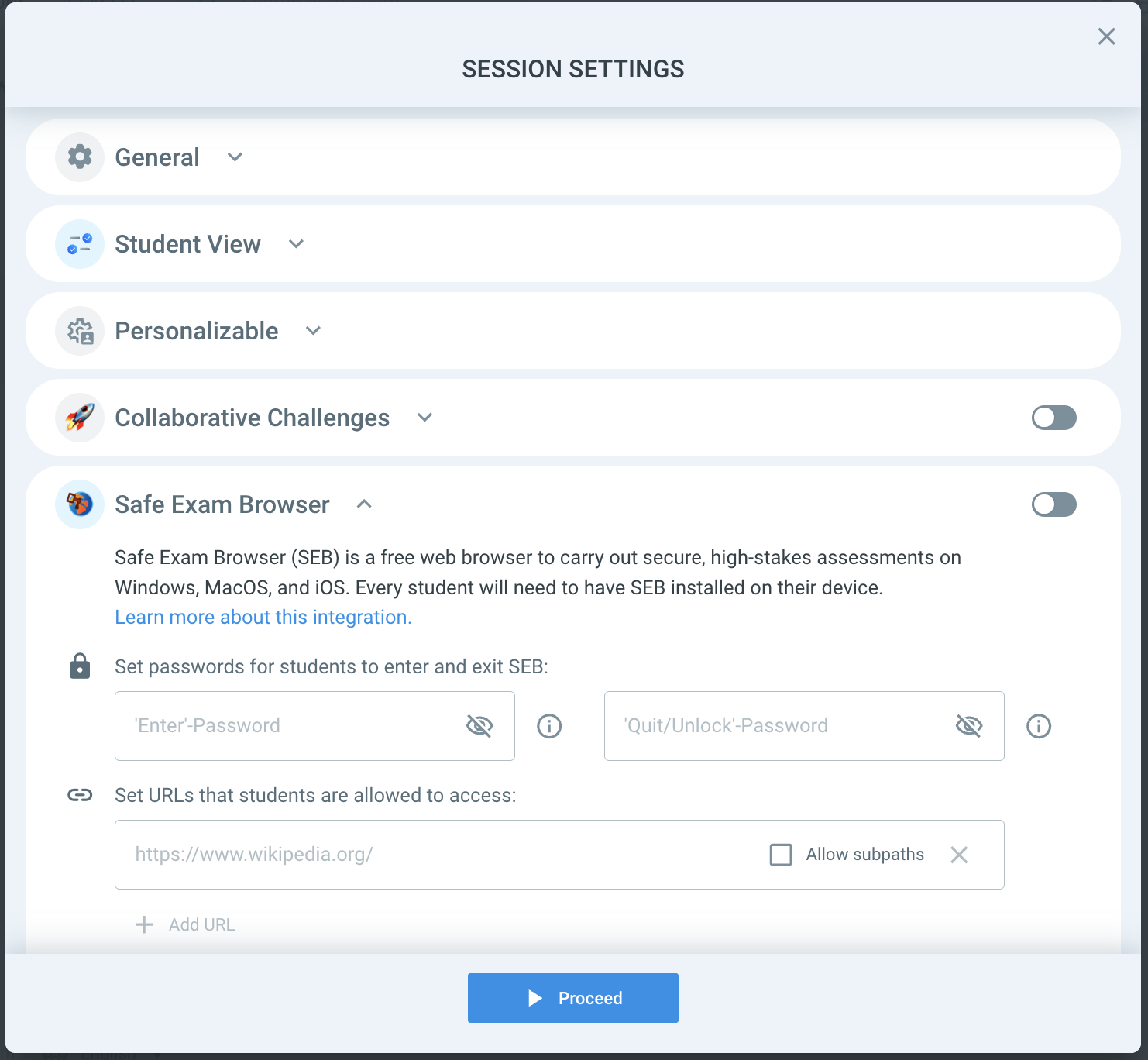
Activate the Safe Exam Browser by clicking the slider on the right.
You can now set all settings regarding the Safe Exam Browser.
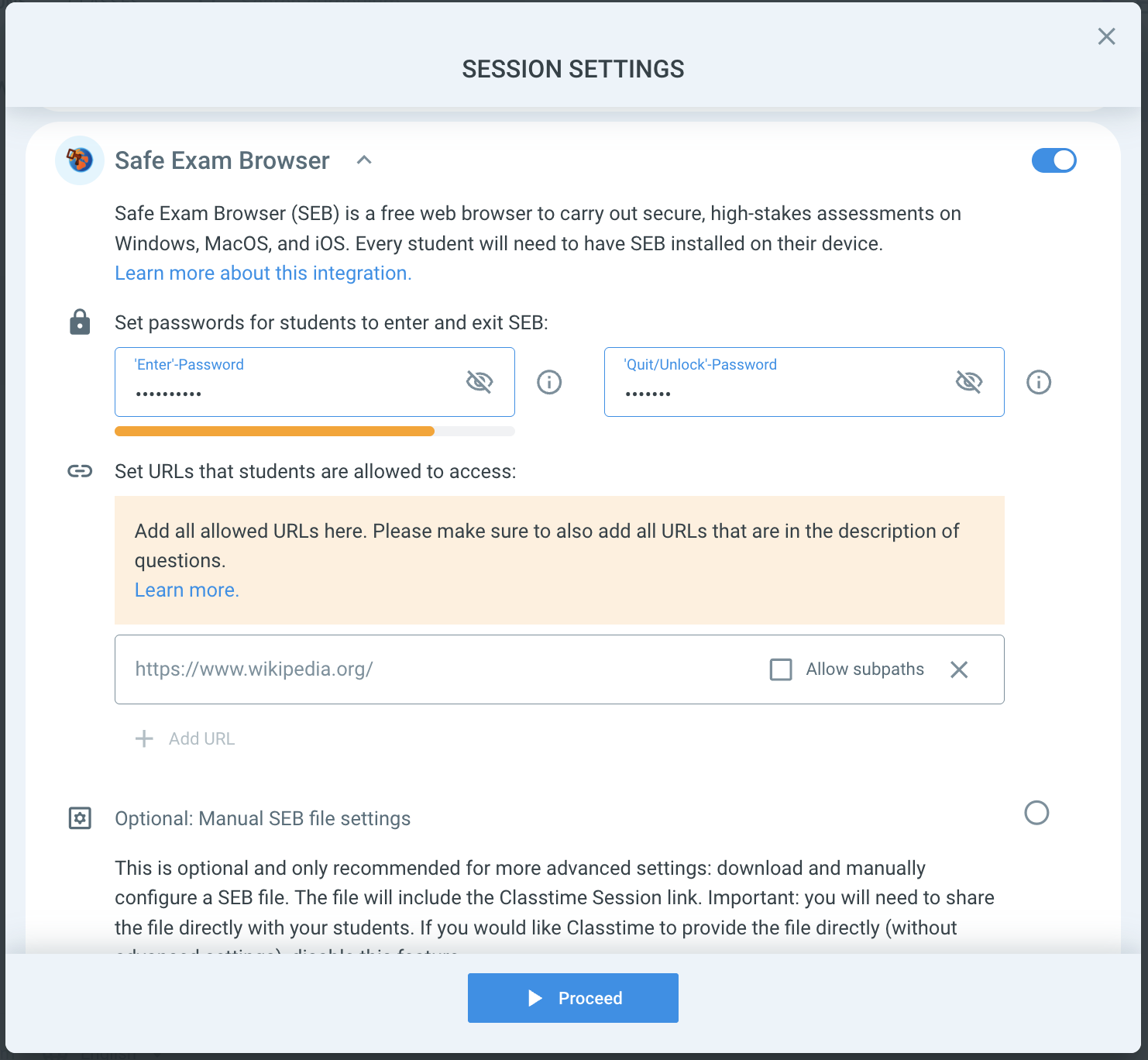
Set a start and end password. Students must enter this in Classtime to start the exam and thus put the laptop into a kiosk environment, in which the computer blocks every access except for the session. In addition, a code must be set that students can use to exit the kiosk environment after submitting the session.
If necessary, you can also specify URLs here that will be accessible to students during the session. For a language exam, for example, a dictionary. The links must be mentioned in the session settings as well as in the question.
All URLs you have included in the question titles, question description, answer options, answer explanation, or context material are automatically added to the whitelist. These are also listed in the session settings. You cannot edit them, only delete them. Please note that only listed URLs are accessible to learners.For more advanced settings, you can download a SEB file and manually configure it using the SEB Configuration Tool.
How does the Safe Exam Browser work for the student?
As usual, invite your students to the session via code, QR code, link, or email.
After students have followed the invitation, they will be asked to download the Safe Exam Browser file for the desired session.

After clicking on the downloaded file, a window will open where they need to enter the start password to activate the kiosk environment and join the session.
Students can then log into the session as usual with their account or with a name.
After the session has been submitted by the student, they can press the power button at the bottom right and will be prompted to enter the end password to deactivate the Safe Exam Browser on the device.