
School Management: Add and Manage Teachers
The School Management page lets school administrators manage everyone on a school license in one place — invite new teachers, assign roles, and remove members in a couple of clicks.
What you can do
On the School Management page you can:
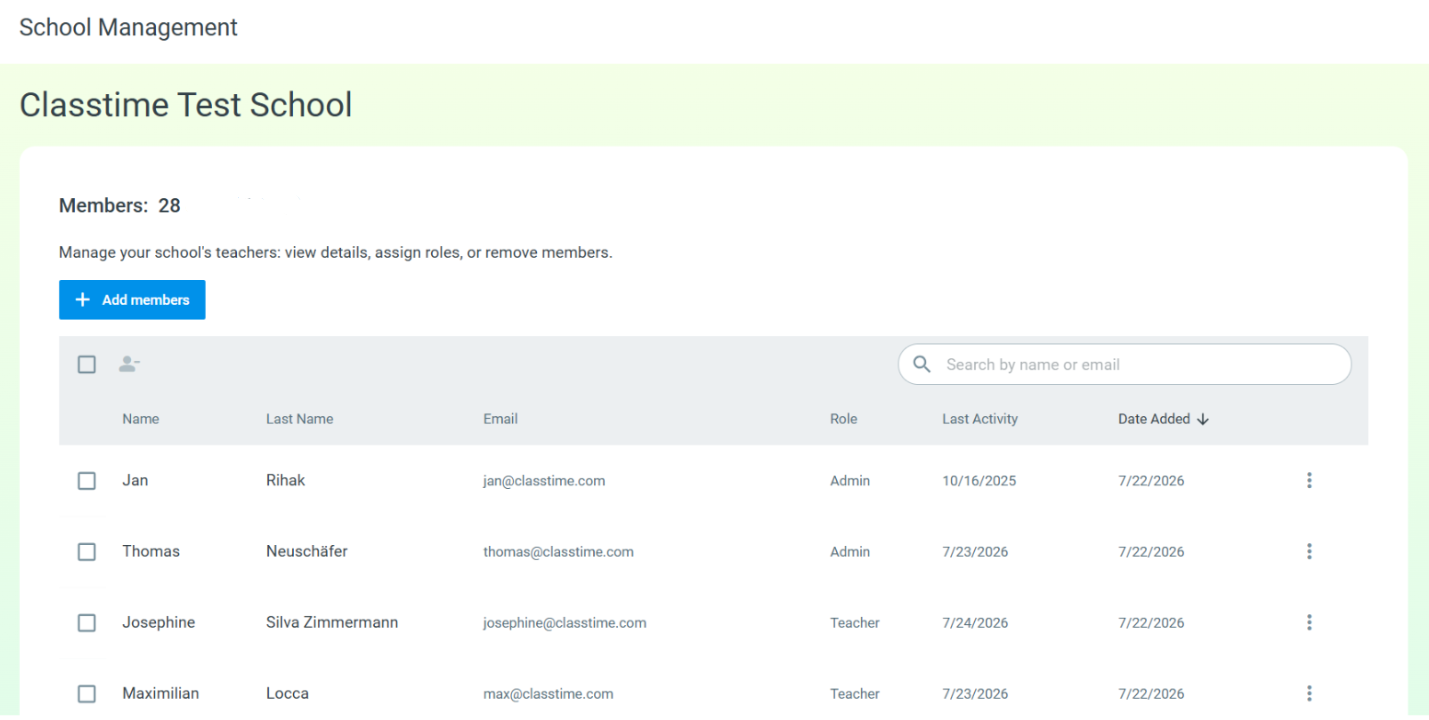
See everyone on your school licence, their role, last activity, and the date they were added
Invite new teachers by email
Assign or change roles (Admin or Teacher)
Remove members from your school
Search and sort the member list
Opening School Management
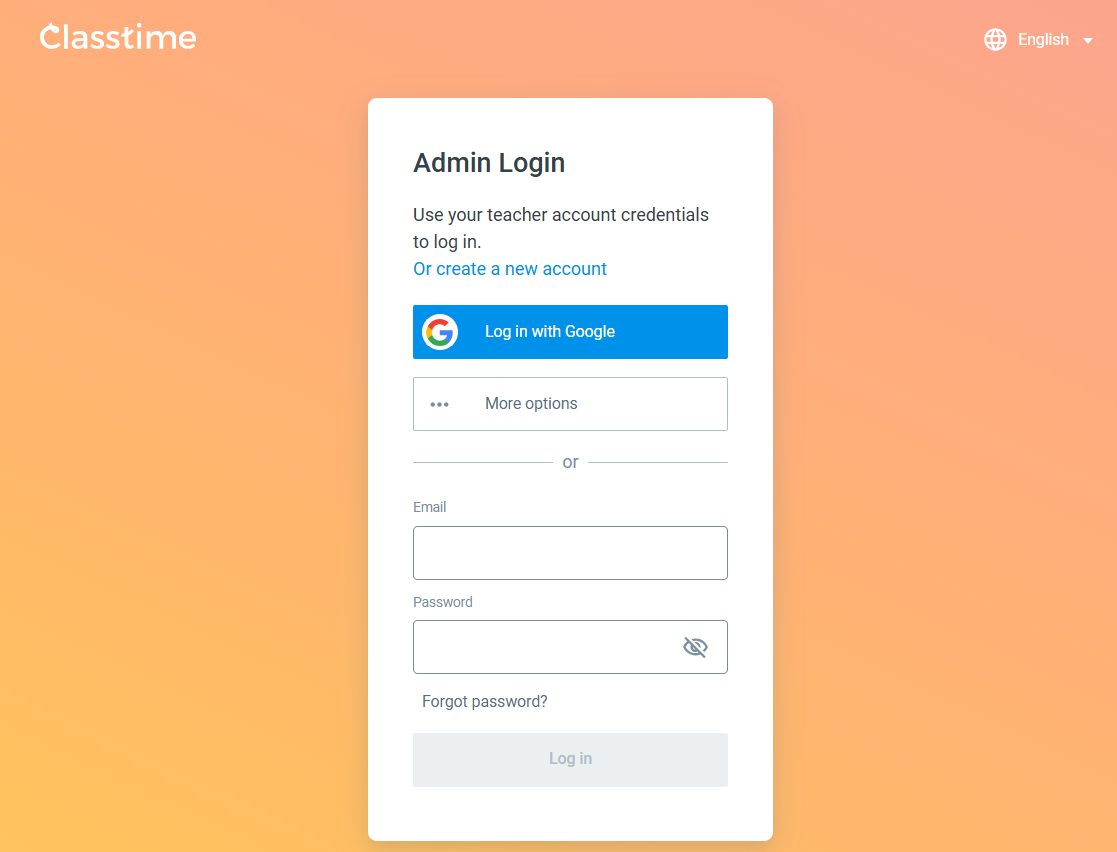
Open the School Management page from your profile menu in the top-right corner. You will need to use your teacher account credentials to log in as an administrator.
Roles at a glance
Every member has one of two roles:
Admin — manages teachers and roles on the School Management page.
Teacher — no access to the School Management page.
Adding (inviting) teachers
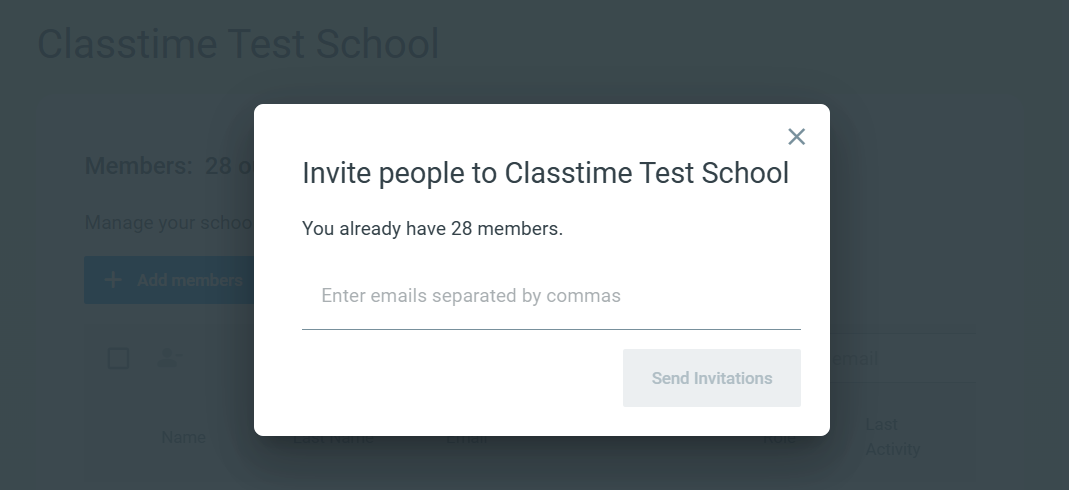
1. Click Add members.
2. In the Invite people to [your school] window, enter the email addresses of the teachers you want to invite, separated by commas.
3. Click Send Invitations.
Invited teachers receive an email invitation and appear in your member list immediately. Once they sign up, they join your school license automatically and have access to all the functions.
Assigning or changing a role
1. Click the three-dot menu at the end of a member’s row.
2. Choose Admin or Teacher.
The change takes effect immediately.
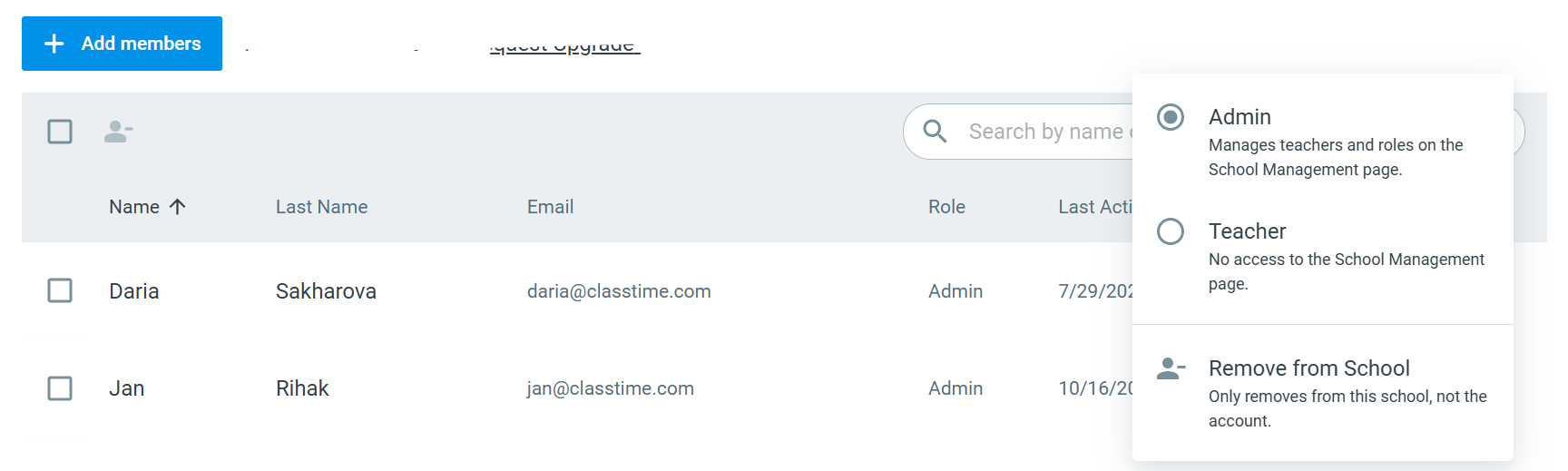
Tip: The same menu also contains Remove from School.
Removing members
You can remove one or several members at once:
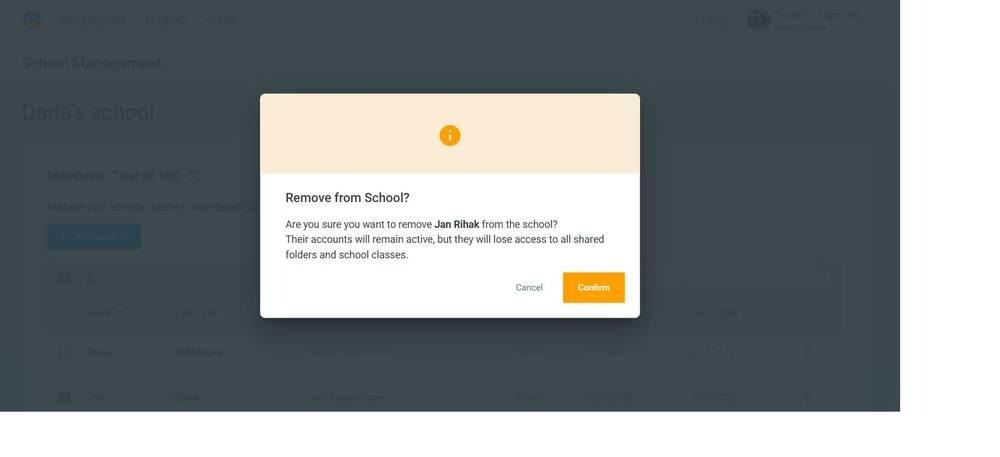
1. Select the checkbox next to each member you want to remove (or, for a single member, use the three-dot menu → Remove from School).
2. Click the remove icon above the list.
3. Confirm.
Removed teachers keep their individual Classtime accounts, but they lose access to your school’s shared folders and classes.
Searching and sorting
Use the search box to find a member by name or email. You can click any column header (“Name”, “Last Name”, “Email”, “Role”, “Last Activity” or “Date Added”) to sort the list.
Managing your school this way means new colleagues get access instantly — with no waiting on support.
FAQ
I am no longer the Classtime admin or would like to transfer the admin role. What should I do?
You can transfer the admin role to another person at your school at any time. First, assign the admin role to the appropriate colleague. Once there is at least one other admin, you can remove your own admin role or have another admin change your role to that of a regular user. A school can have multiple admins at the same time.
Do removed teachers lose their Classtime account?
No. Removing someone only takes them out of your school. Their personal account and content stay active; they simply lose access to the school’s shared folders and classes.
What’s the difference between an Admin and a Teacher?
Admins can open the School Management page and manage members and roles. Teachers have no access to that page and use Classtime as members of the school.
Can I add several teachers at once?
Yes. Enter multiple email addresses, separated by commas, in the invite window.
The name of the teacher I invited hasn’t appeared yet.
Names appear automatically once they accept the invitation and log in. Ask them to check their inbox (and spam folder) for the invitation email.